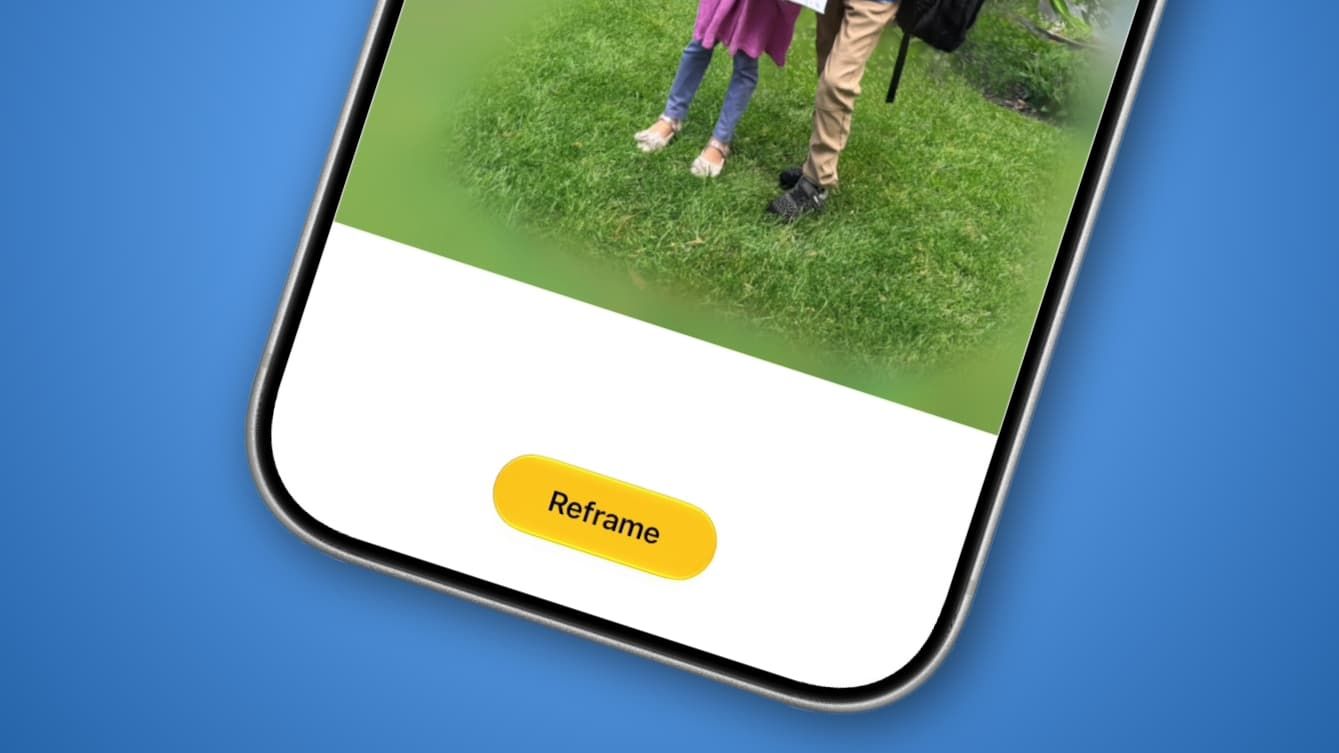
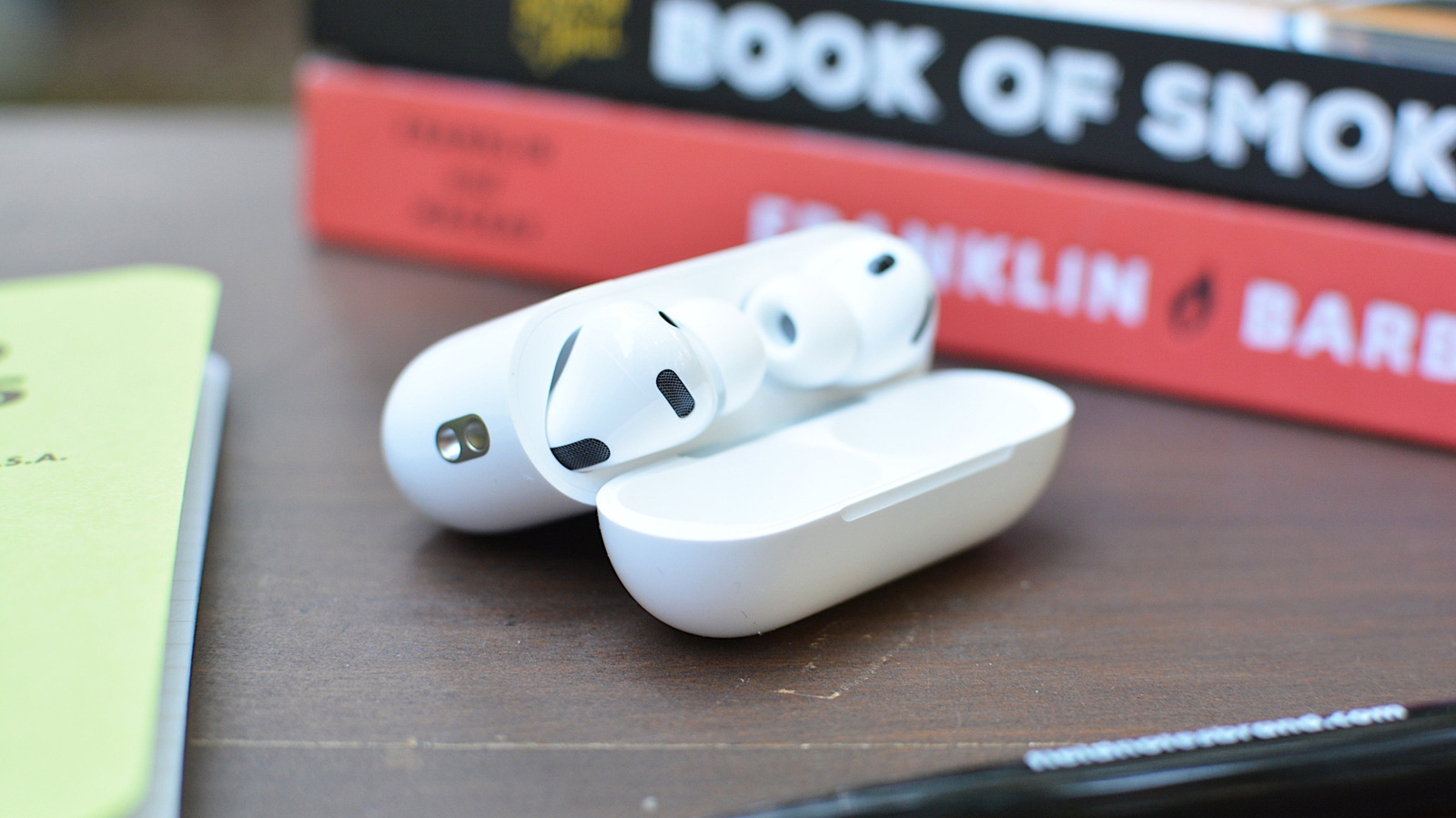
If you do not own an Apple Watch, you may still want a convenient way to trigger your iPhone’s camera without touching the screen or using a timer. According to a guide by Igor Bonifacic for Engadget, Apple added a feature called Camera Remote with the release of iOS 26 last September. It allows you to use your AirPods as a wireless shutter release for your iPhone, snapping a photo or starting/stopping video recording by pressing the stem or Digital Crown.
What You’ll Need
To use Camera Remote, you need:
- An iPhone running the latest version of iOS. As of the writing of the Engadget article, that is iOS 26.5.1, which Apple released on June 1, 2026.
- A pair of supported AirPods: AirPods Pro 3, AirPods Pro 2, AirPods 4, or AirPods Max 2.
Older models like the original AirPods Pro do not support Camera Remote, according to Engadget.
How to Enable Camera Remote
Camera Remote is turned off by default. Follow these steps from the Engadget guide:
- Open the Settings app on your iPhone.
- Tap the name of your AirPods. If they do not appear, open your AirPods case.
- Scroll down to the Camera Control section.
- Tap the Camera Remote field and select either Press Once or Press and Hold.
Once enabled, anytime the Camera app is open on your iPhone, pressing the stem (on AirPods Pro or AirPods 4) or the Digital Crown (on AirPods Max) will take a photo or start/stop video recording. Engadget notes that at least one AirPod must be in your ear for the gesture to work; if the AirPods are sitting on a desk or in your palm, the camera cannot be controlled with them.
Important Gesture Conflicts
Enabling Camera Remote disables certain other AirPod gestures when the Camera app is open. As Apple explains in the Settings app:
“When using AirPods for camera actions, if you select Press Once, media control gestures will be unavailable, and if you select Press and Hold, listening mode and Siri gestures will be unavailable.”
This means you will lose the ability to switch between noise control modes or summon Siri while the camera is active, depending on your choice. Users should consider which trade-off is more important for their workflow.
Supported AirPods and Compatibility
| Model | Supports Camera Remote? | Notes |
|---|---|---|
| AirPods Pro 3 | Yes | Post-iOS 26 feature |
| AirPods Pro 2 | Yes | |
| AirPods 4 | Yes | |
| AirPods Max 2 | Yes | |
| Original AirPods Pro | No | Older model |
| Other older AirPods | No | Not mentioned in guide |
For enterprise users who occasionally need a hands-free remote capture — for example, documenting inventory, inspecting equipment, or capturing training videos — this built-in AirPods capability can replace the need for a dedicated remote trigger. As reported by Engadget, the feature is particularly useful when an Apple Watch is not available, offering a simple alternative to the 10-second timer method.
Sources: